Graph Pop-Up Menu
A pop-up menu is available in the Data Settings and Properties to let you access the Measurement Inspector, manage scalar information, as well as to export graphs and execute macros. You should note that the items available in the pop-menu are dependent on the number of items selected — one or multiple.
 Items Available for a Single Selection
The following items are available when you select a single graph in the Data Properties and Settings panel.
Create a Box From
Current Bounding Box… Automatically creates a box that corresponds to the dimensions of the bounding box of the selected graph. If required, you can edit the geometry of the box.
Current Clip Box… Automatically creates a box that corresponds to the dimensions of the clip box associated with the selected graph. If required, you can edit the geometry of the box.
Export
As ORSObject… Lets you save the selected graph in the Dragonfly Object (*.ORSObject extension) file format (see Exporting Objects).
Measurement Inspector
Opens the Measurement Inspector panel (see Evaluating Graphs with the Measurement Inspector).
Graph Analysis
Opens the Graph Analysis dialog, shown below, in which you can conduct a detailed analysis of a selected graph, such as plotting angles between graph edges or computing node-type abundance.
Graph Analysis tool
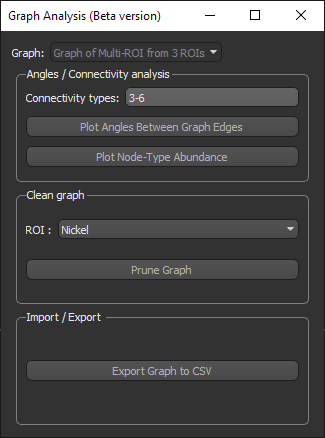
Note The Graph Analysis tool is available for evaluation as a Beta release only.
Execute Macro
Provides a shortcut for selecting macros that can be executed for the selected graph (see Recording and Playing Macros).
Analyze and Classify Measurements
Opens the Analyze and Classify Measurements dialog, in which you can import measurements from graphs and other objects for the cross-table analysis of feature vectors (see Analyzing and Classifying Measurements).
Compute Measurements
Opens the Compute Measurements dialog, in which you can compute measurements and add other values to a graph (see Computing Measurements for Graphs).
Assign Unit to Scalar Values
Lets you assign a new unit to scalar values (see Assigning Units to Scalar Values).
Delete Selected Scalar Values
Lets you delete selected measurements from scalar meshes (see Deleting Scalar Values from Graphs).
Export Scalar Values
Lets you export selected measurements from graphs to a comma-separated values (*.CSV extension) file (see Exporting Scalar Values from Graphs).
Import Scalar Values from a CSV File
Lets you import scalar values contained in a selected comma-separated values (*.CSV extension) file to the selected graph (see Importing Scalar Values from CSV Files).
Map Vertex Scalar Values From
Lets you map the scalar values from another object, such as an image, multi-ROI, or scalar mesh, to the selected mesh (see Mapping Vertex Scalar Values to Graphs).
Manage User Data
Opens the Object Description dialog, in which you can add a description to the selected object or edit its current description (see Managing User Data).
Plot Graph Tortuosity
Plots the distribution of graph tortuosity between input and output boxes (see Plotting Graph Tortuosity).
Note This item will only be available if the required box shapes are available in the Data Properties and Settings panel.
Analyze Graph Tortuosity
Lets you graph tortuosity between selected input and output boxes (see Analyzing Graph Tortuosity).
Note This item will only be available if the required box shapes are available in the Data Properties and Settings panel.
Plot Graph Throat Weighted Tortuosity
Plots the distribution of graph tortuosity and throat-weighted tortuosity between input and output boxes (see Plotting Graph Tortuosity).
Note This item will only be available if the required box shapes and region of interest are available in the Data Properties and Settings panel.
Analyze Throat Weighted Tortuosity
Lets you graph throat-weighted tortuosity between selected input and output boxes (see Analyzing Graph Tortuosity).
Note This item will only be available if the required box shapes and region of interest are available in the Data Properties and Settings panel.
Copy in an ROI as Sphere and Cylinder
Creates a region of interest that is representative of the selected graph.
Add a Constant Edge Measurement
Lets you add a constant vertex measurement to the selected graph (see Adding Constant Edge and Vertex Measurements).
Add a Constant Vertex Measurement
Lets you add a constant vertex measurement to the selected graph (see Adding Constant Edge and Vertex Measurements).
Add Vertex Connectivities Measurement
Lets you add vertex connectivities measurements to the selected graph, which provides an opportunity to investigate the connectivity of the graph nodes.
Apply Linear Transformation to Scalar Values
Lets you apply linear transformations to the selected scalar value(s) by modifying the slope and/or offset values.
Create Vertex Scalar Distance from Mean Points
Automatically computes and adds scalar values of distances calculated from the mean position of a series of points.
Note You must first create a points series with the Points tool to enable this item (see Using the Points Tool).
Get Euler Characteristic Number
Automatically computes the Euler characteristic number that describes the surface of the selected graph.
Create Euclidean Length Scalar Values
Lets you add measurements of Euclidean length to the edges of a graph.
Extract Object History as Macro
Extracts the object's history as a macro, which can provide an audit trail to help troubleshoot processing issues (see Extracting Object Histories).
Note Object history macros can also be edited and replayed to create new objects.
Items Available for Multiple Selections
The following items are available whenever you select two or more graphs in the Data Properties and Settings panel.
Export
As Multiple ORSObject… Exports the selected items in the Dragonfly Object (*.ORSObject extension) file format to a selected folder as multiple files (see Exporting Objects). You should note that if the selected objects share the same name, their file names will be appended with a sequential number.
As ORSObject… Exports the selected items to a Dragonfly Object file (*.ORSObject extension) to a selected folder (see Exporting Objects).
Execute Macro
Provides a shortcut for selecting macros that can be executed for the number and type of items selected.
